Add Additional Fees
Summary
This option allows you to add additional fees to a Criminal case.
Criminal
Criminal Cases
Step 1: Select process
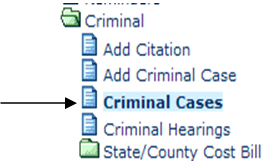
After opening the Criminal folder, select Criminal Cases.
Step 2: Select case
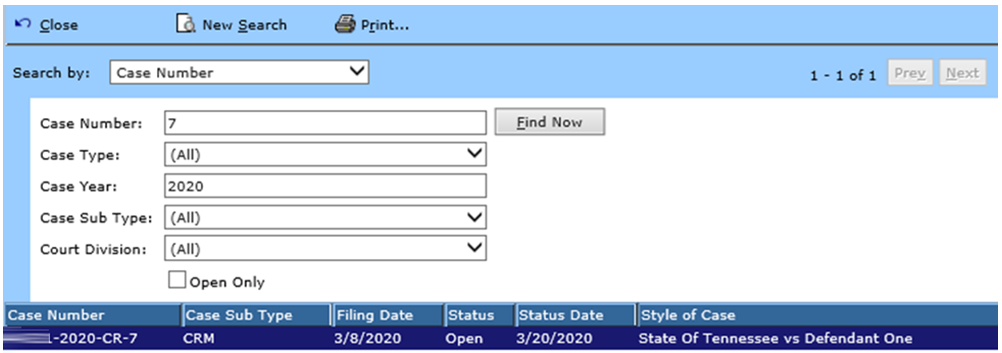
Using the drop down menu for the Search by field, you can select to search by Case Number (this is the default), Citation Number, Party, Attorney, Officer, Judge, Status, Filing Date, Reference Number, Last Name, or Sentence Deferred. You can also select the cases that are Open Only. Based on how you will search, you will enter the appropriate search criteria. Make the appropriate entries/selections. When the criteria have been selected, click the Find Now button. The cases will be displayed. Double click on the appropriate case to select.
Step 3: Select to Add Fees
The case information will be displayed. From the side Options menu, select Fees.
Step 4: Select Party, Type of Fee and Fee to Add
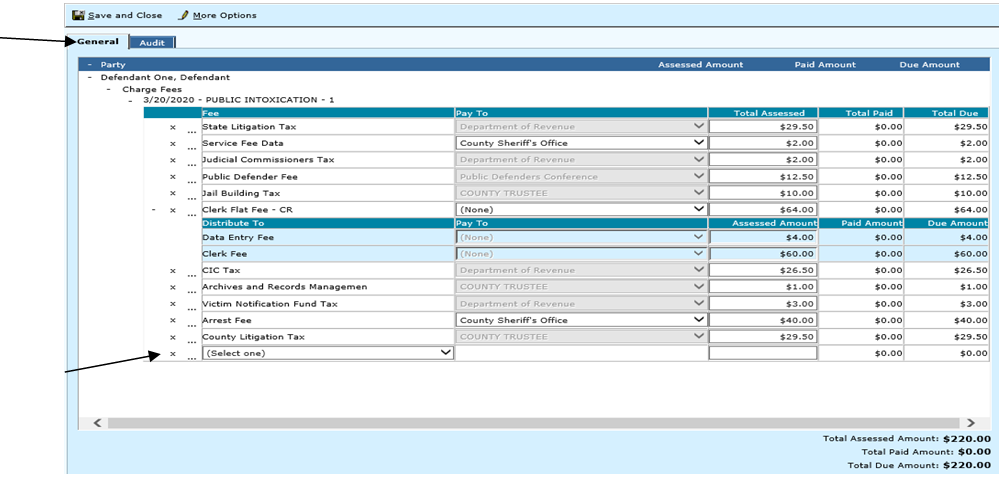
Click the + sign next to the party to view their fees. Fees that are associated with the charge, hearing or additional fees will already default. Click the + beside the type of Fee to add the fee in the correct area. Click Add New, below the last fee and the select one drop down will appear. Select the fee you wish to add from the drop down. For a copy fee, an additional popup will appear for additional information that TnCIS needs. See Step 5.
Step 5: Copy Fees
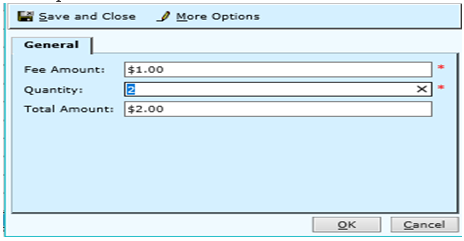
Enter the fee amount and the number of copies. Once information is complete, click OK to proceed or click Cancel to return To the previous screen.
Step 7: Select reason
Use the drop down menu to select a reason for the added fee. You may use the Reason hyperlink to Add New or Edit a reason. If ‘Other’ is selected, the ‘Other Reason’ field appears allowing the clerk to enter all information necessary, concerning the change. Then click the OK button at the bottom of the screen or Save and Close to return to Step 3.
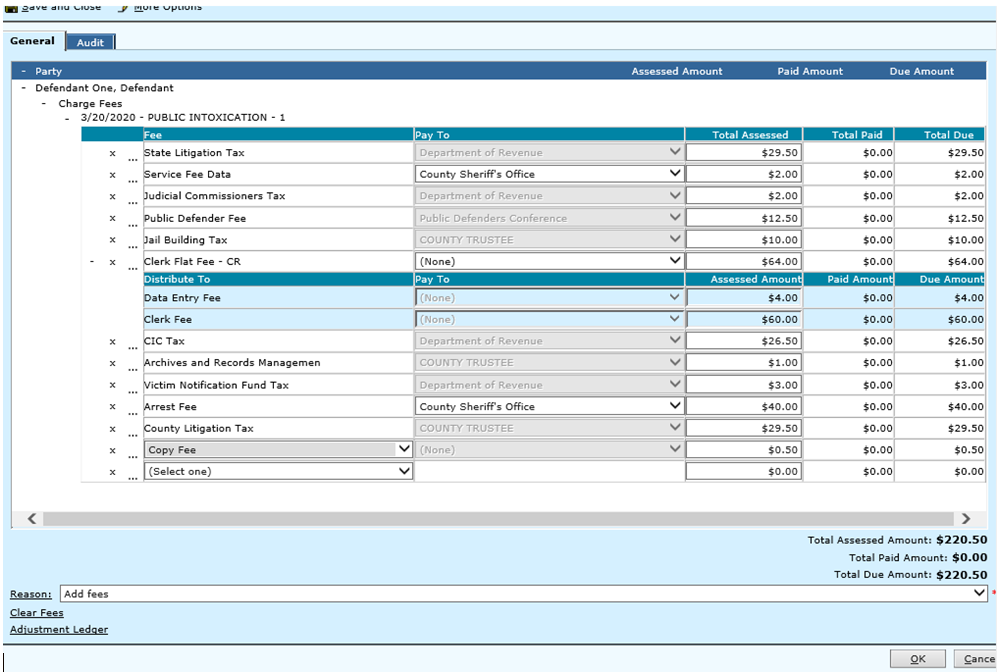
| Clear Fees | Click the Clear Fees hyperlink to clear the fees on this case. |
| Adjustment Ledger | Click the Adjustment Ledger hyperlink to view the adjustment ledger. |
Rev. 03/16/2021