Add Parties to an Existing Case
Summary
This option allows you to add another party to an existing Criminal case, such as a witness, victim, plaintiff or defendant.
Criminal
Criminal Cases
Step 1: Select process
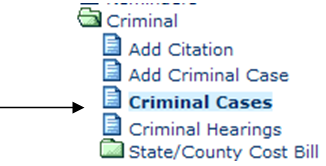
After opening the Criminal folder, select Criminal Cases.
Step 2: Select case
Using the drop down menu for the Search by field, you can select to search by Case Number (this is the default), Citation Number, Party, Attorney, Officer, Judge, Status, Filing Date, Reference Number, Last Name, or Sentence Deferred. You can also select the cases that are Open Only. Based on how you will search, you will enter the appropriate search criteria. Make the appropriate entries/selections. When the criteria have been selected, click the Find Now button. The cases will be displayed. Double click on the appropriate case to select.
Step 3: Select to Add Parties
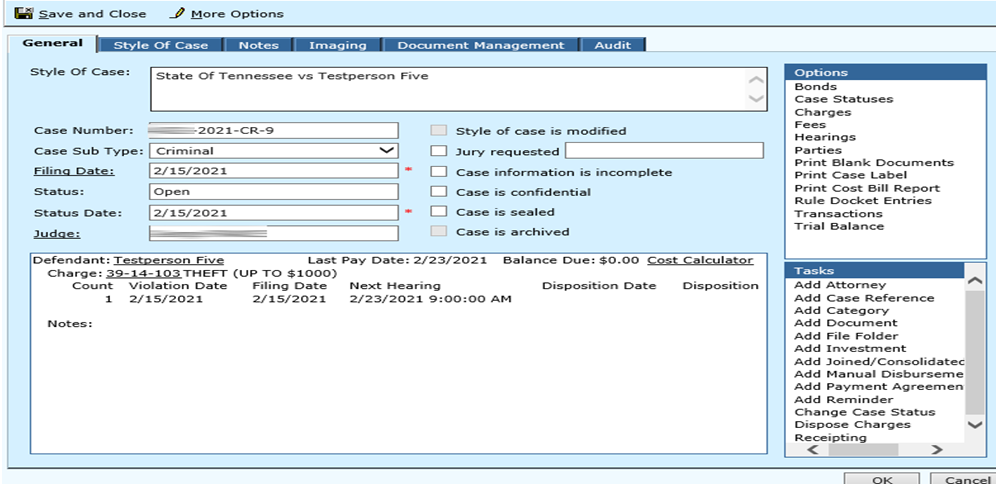
The case information will be displayed. From the side Options menu, select Parties.
Step 4: Add New Party
The parties associated with this case and their roles are displayed on this screen. To add parties, click the Add New button.

Step 5: Complete party information
Complete the party information as prompted. When the information is complete, select the Case.
Field Descriptions:
| Business Name | Required | Enter the business name of the party. Click on the Business Name hyperlink to view business names currently on file and make a selection, add a new name, or edit an existing name. |
| Individual Name | Optional | Enter the full name of the party. Click on the Individual Name hyperlink to view names currently on file and make a selection, add a new name, or edit an existing name |
| This is a non-public party | Optional | Check this box if the party you are adding should not be seen by the public. (i.e. on the public access terminal) |
| Address Type | Optional | This indicates the type of address being entered. Use the drop down menu to make a selection. |
| Street | Optional | Enter the street address for the party. More than one line of address can be used. |
| City | Optional | Enter the city of the address of the party. The city should correspond with the zip code. Note: You can enter the zip code and the city and state will automatically be entered. |
| State | Optional | Enter the state abbreviation of the address of the party. The state should correspond with the zip code and standard state abbreviations. Use the drop down menu to select from state abbreviations currently on file. Note: You can enter the zip code and the city and state will automatically be entered. |
| Zip Code | Optional | Enter the zip code of the address. Click on the Zip Code hyperlink to view zip codes currently on file and make a selection or add a new zip code. If the city and state is not entered; they will automatically be displayed if a zip code entered is currently on file. |
| This is a mailing address | Optional | Check this box if the address is used as a mailing address only and this is not the physical address of the party. |
| Phone | Optional | This is the main contact telephone number of the party. This contains two fields. For the first field of information, use the drop down menu to select the type of phone number being recorded. i.e., Home, Work, etc. Then in the second field, enter the entire telephone number (area code, prefix, number). |
| Optional | This contains two fields. For the first field of information, use the drop down menu to select the type of Email being recorded. Then in the second field, enter the Email address. | |
| Party Role | Optional | Use the drop down menu to select the role of the party. |
| Social Security Number | Optional | Enter the party's social security number. |
| Driver's License State | Optional | Enter the state where the party's license was issued. Use the drop down menu to select the state. Use the Driver License State hyperlink to Add New or Edit driver license state. |
| Driver's License Type | Optional | Enter the party's type of driver license. |
| Driver's License Number | Optional | Enter the party's driver license number. |
| Date Of Birth | Optional | Enter the party's date of birth. |
| Race | Optional | Use the drop down menu to select the race of the party. You can use the Race hyperlink to add a New Race. |
| Sex | Optional | Use the drop down menu to select the sex of the party. |
| Eye Color | Optional | Use the drop down menu to select the party's eye color. You can use the Eye Color hyperlink to Add a New Eye Color. |
| Hair Color | Optional | Use the drop down menu to select the party's hair color. You can use the Hair Color hyperlink to Add a New Hair Color. |
| Height (feet/inches) | Optional | Enter the party's height. The first field is for feet and the second field is for inches. |
| Weight (lbs.) | Optional | Enter the party's weight in even pounds. |
| Mothers Maiden Name | Optional | Enter the party's mother's maiden name. |
| Number of Children | Optional | Enter the party's number of children. |
Step 6: Complete case information
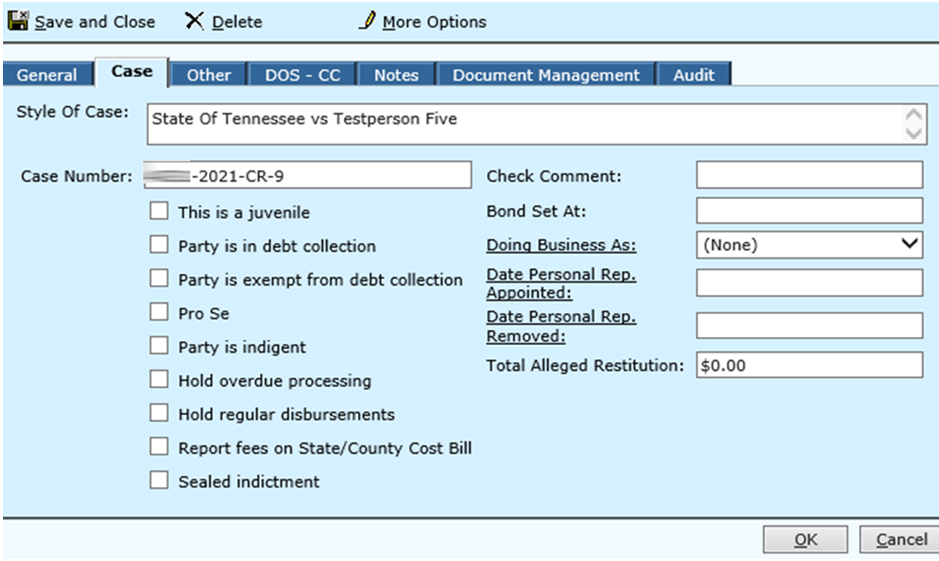
Complete the information on the Case tab. When complete, select the Other tab.
Step 7: Review Other Tab
Review the information on the Other tab. If the information is complete, select the Notes Tab
Step 8: Add notes
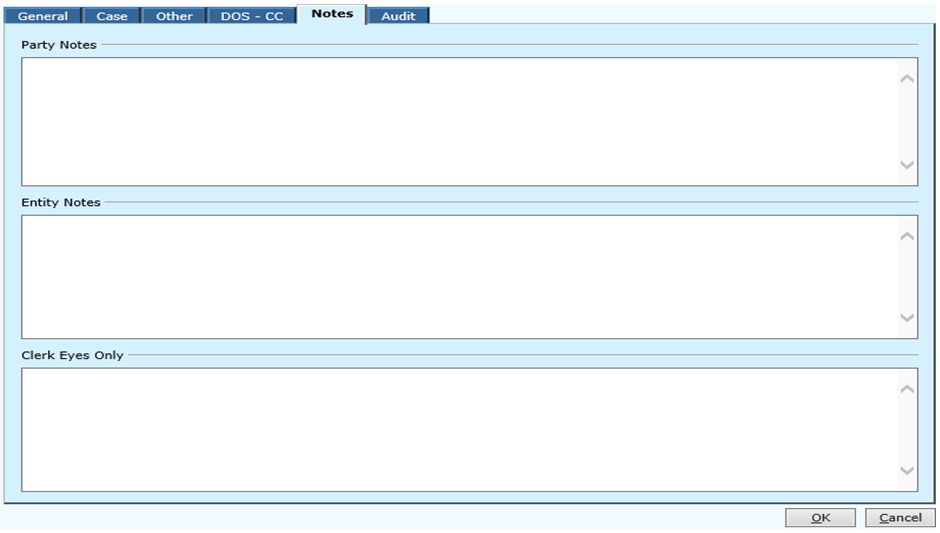
Add any notes appropriate for adding parties to this case. Under the Clerk Eyes Only section, you can type in notes that only the clerk can view. When the information is complete, click OK to be returned to the Party screen. Click Close to return to the Search by screen.
Rev. 03/24/2021