Add Overdue Action
Summary
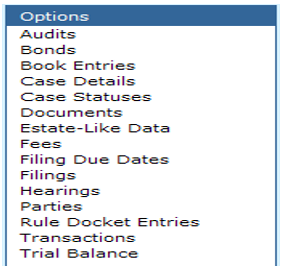
After a Civil Case has been added, an Overdue Action can be viewed or added through Options, Filing Due Dates. All filings will be listed and can be edited from this screen. New filings and Overdue Actions can also be added from here.
Civil
Add Overdue Action
Step 1: View Filings for the case
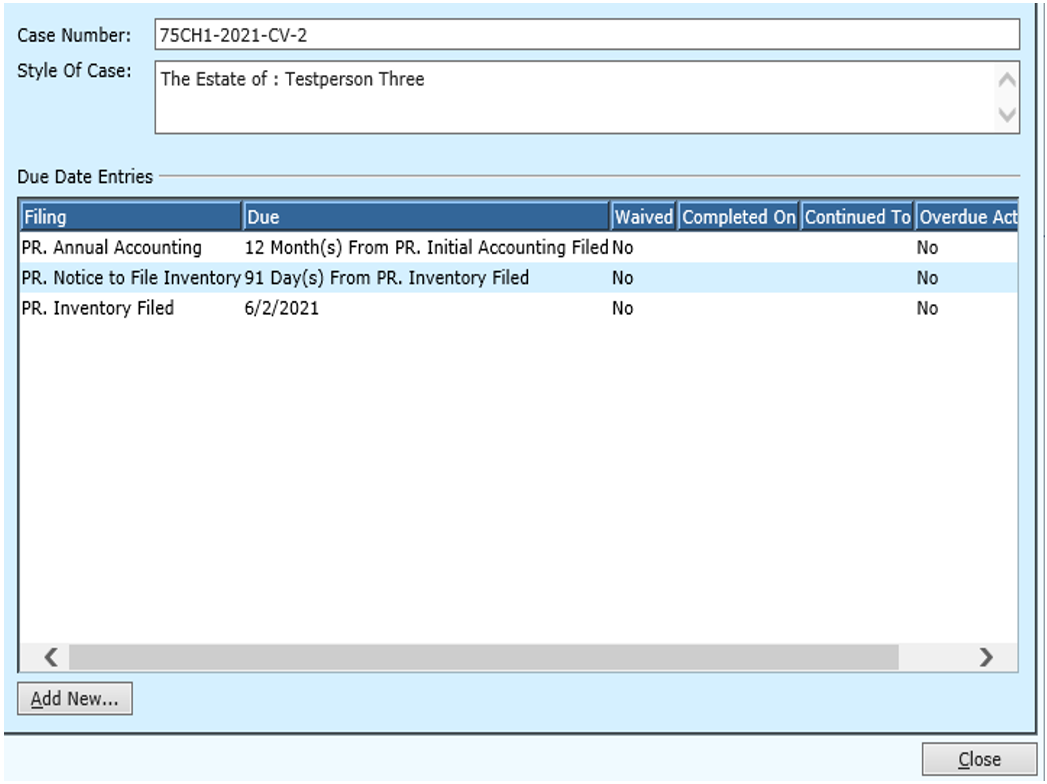
From a civil case, click on Filing Due Dates from the Options menu. The Filing Due Dates screen will appear. The Case Number, Style of Case, and Filings will
be displayed.
Double-Click on a Filing to edit the Filing.
Some fields cannot be edited from the Filings Due Date screen. Click OK to update the ‘Filing Due Screen’ if any changes were made.
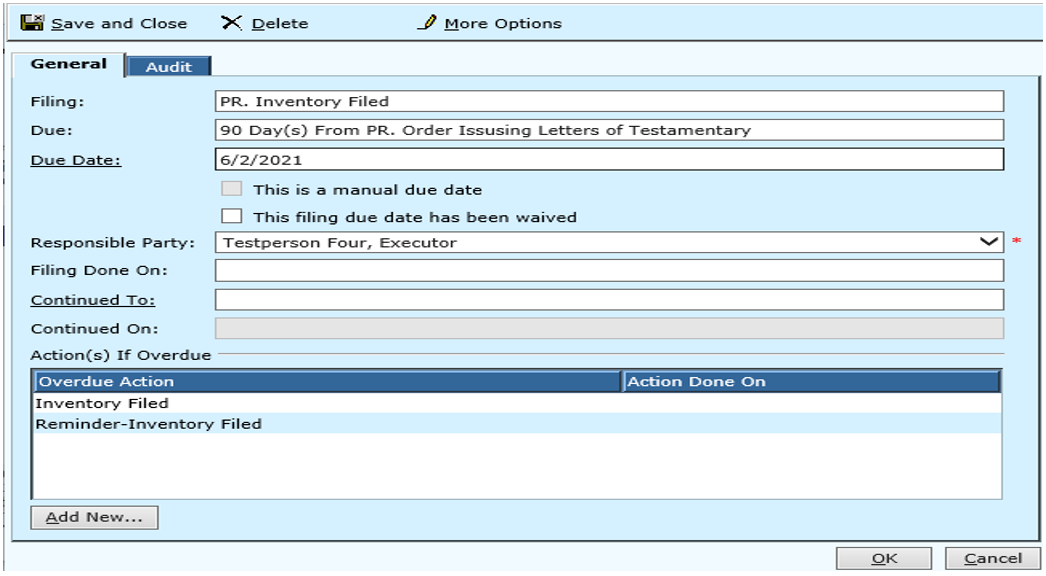
Field Descriptions:
| Filing | Required | The name of the filing is displayed here. This is display only. |
| Due | Optional | A description of when the filing is due. This is display only. |
| Due Date | Optional | Place the due date of the filing in this field. If it was calculated previously it will default into this field from a Due Date Methods. To search for a date from the calendar, click on the Due Date hyperlink and make a selection from the calendar. |
| Parent Waived | Optional | If the filing is dependent upon another filing, and the parent filing has been waived, “PARENT WAIVED” will be displayed. If the parent filing has been waived, the due date cannot be calculated but can be entered manually. |
| This is a manual due date | Optional | If the due date for the filing has been manually entered, or the calculated due date was manually changed, this check box will be checked. |
| This filing due date has been waived | Optional | This will only be displayed if a Continued To date has been entered. When a filing has been waived, the due date will be display only. |
| Responsible Party | Required | The party responsible for the filing will be listed here. If the filing does not occur, the overdue action will be applied to this party. |
| Filing Done On | Optional | The date of the filing if it has occurred. |
| Continued To | Optional | A Continued To date can be entered if the filing due date has been continued to a later date. This will create a new due date record. To search for a date from the calendar, click on the Continued To hyperlink and make a selection from the calendar. |
| Continued On | Optional | This is the date on which the filing was continued. This is display only unless a Continued To date has been entered. |
| Overdue Actions | Optional | A list of overdue actions that will be/have been taken as a result of the overdue filing. If the overdue actions have already been taken, the date on which the action was taken will be displayed. |
Step 2: Add a new Overdue action
From the ‘Filing Due Date Screen’ click on Add New.
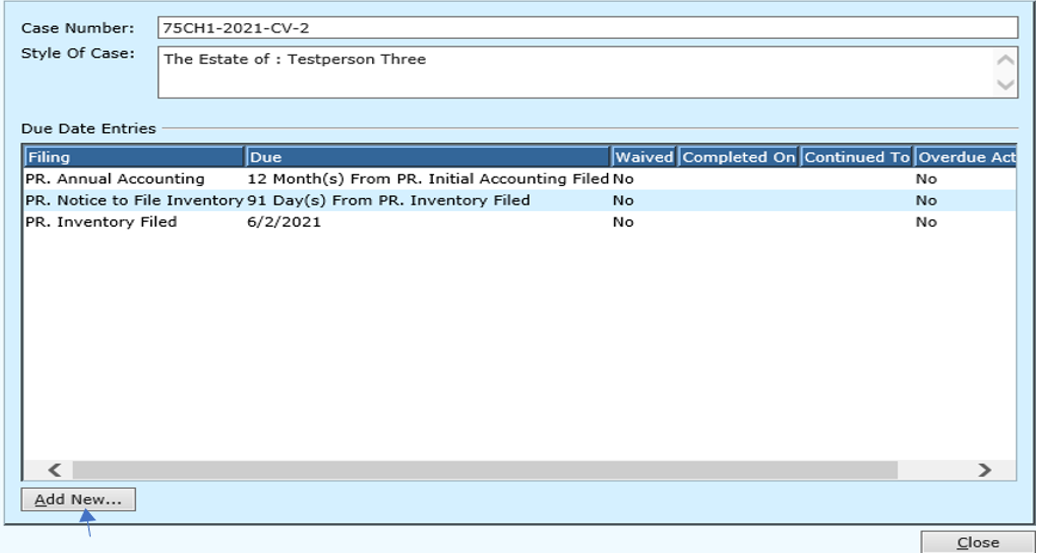
This will bring up the Filing Due Date Overdue Action screen.
The Overdue Action can be selected from the drop down menu options.
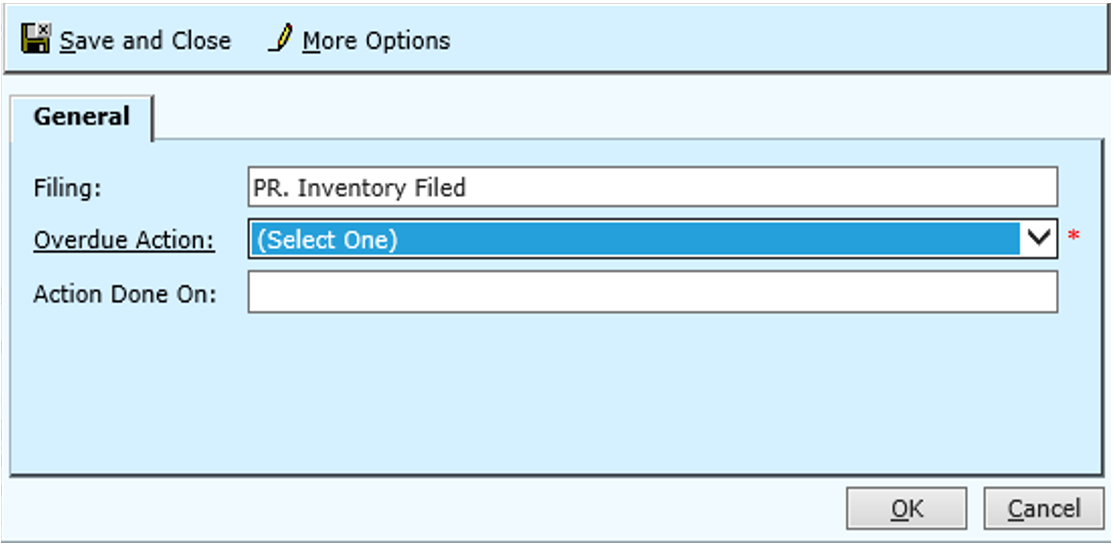
Field Descriptions:
| Filing | The name of the filing is displayed here. This is display only. | |
| Overdue Action | Required | Select the Overdue Action for the filing from the drop down menu options. Click on the Overdue Action hyperlink to add or edit Overdue Actions. |
| Action Done On | The date of when the action occurs will be displayed here. This is display only. |
Rev. 05/14/2021