Processing the DHS Reimbursement
Summary
At some point, once a filing has been marked as eligible for DHS Reimbursement, that payment from the DHS must be processed on the cases that are listed as a DHS Reimbursement. Use the following steps to process the payment that has been received from the DHS.
Civil
CS Cases
Step 1 Process the DHS Reimbursement Check to an Open CS Case (not disposed)
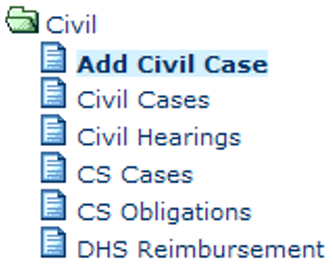
Search for Child Support case using “Civil Cases” or “CS Cases” option from the main menu Civil folder.
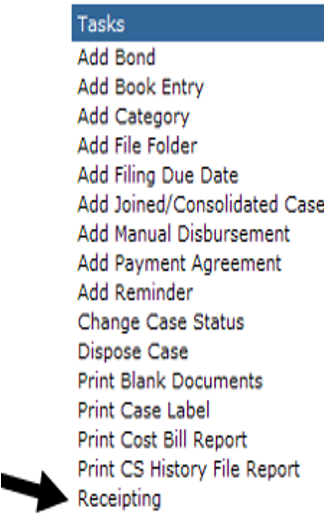
Once you find the case you wish to process, go into that case, and click the “Receipting” tasks from the tasks list.
Step 2 Receipting Fees and Adding DHS Reimbursement Fee
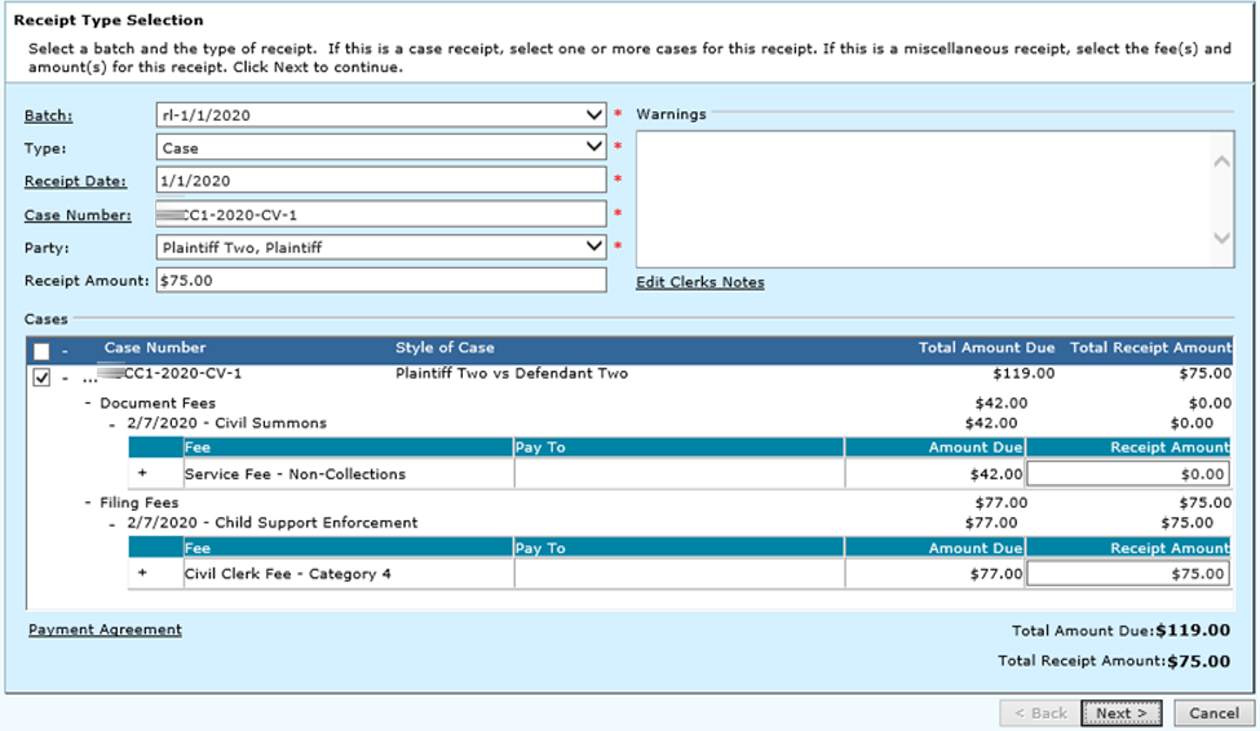
The receipting screen should now be available for use.
Select a Batch ID, Type-Case, and party (plaintiff)
Within the ‘cases’ section (below receipt amount)
Expand the fees (…) apply money to the appropriate fees (clerk & service)
Ensure that the receipt amounts both at the bottom of the screen and in the receipt amount field match.
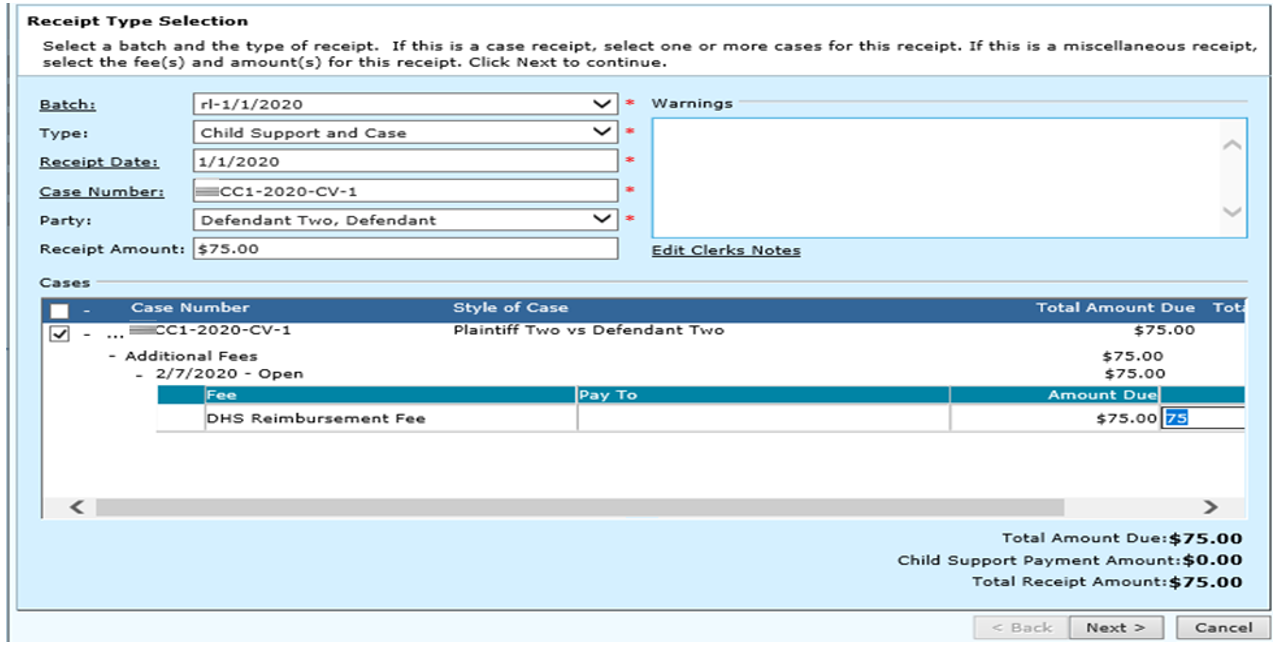
Select payment method
Ensure that amount tendered is correct.
Select ‘other’ from the received of field, then enter the party who made the payment in the ‘other received of’ field.
Complete the receipting process. Note: for any field descriptions, refer to page 7 of this chapter.
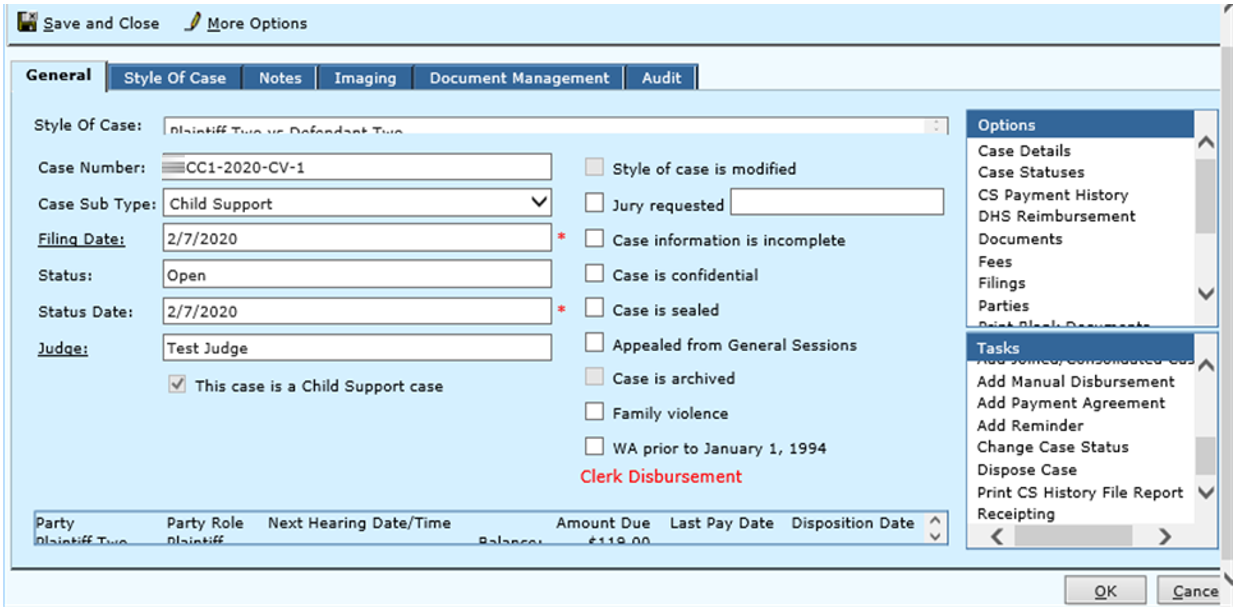
Once you have receipted money, return to the case general screen (see right)
Click on fees from the options menu.
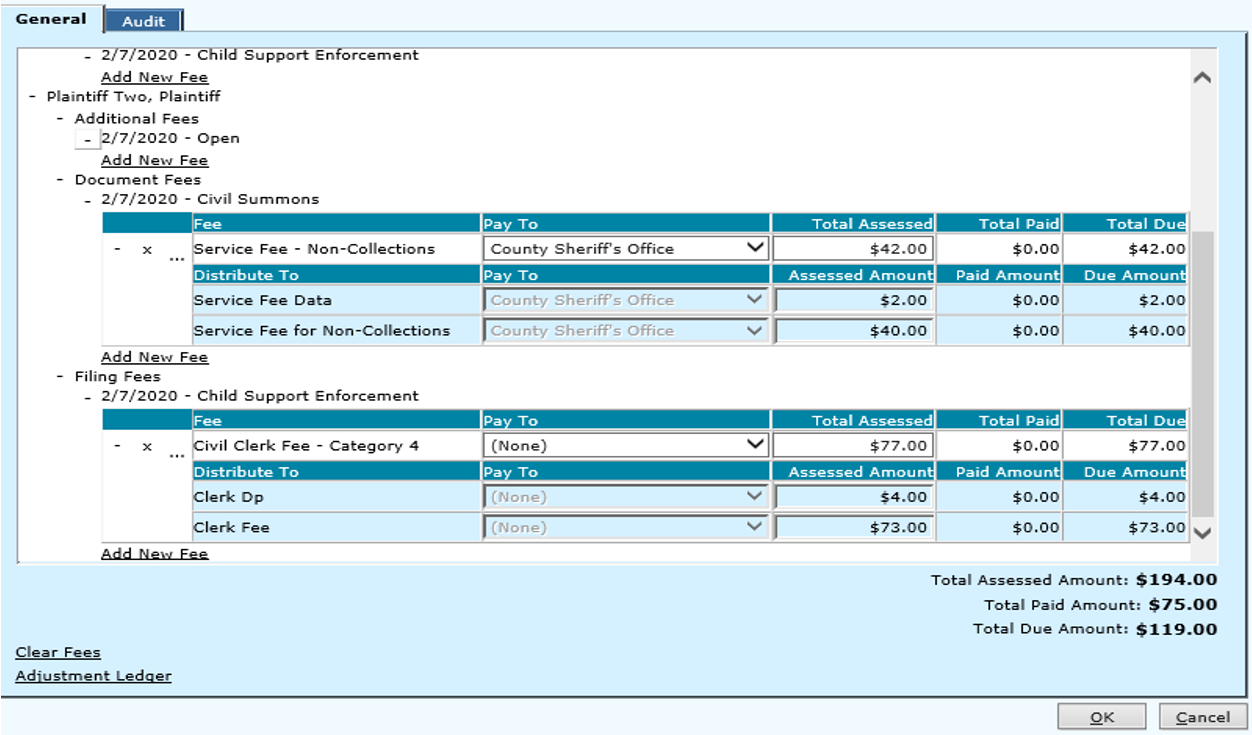
Locate Party if not disposed then the Plaintiff. If case is disposed, then the Defendant.
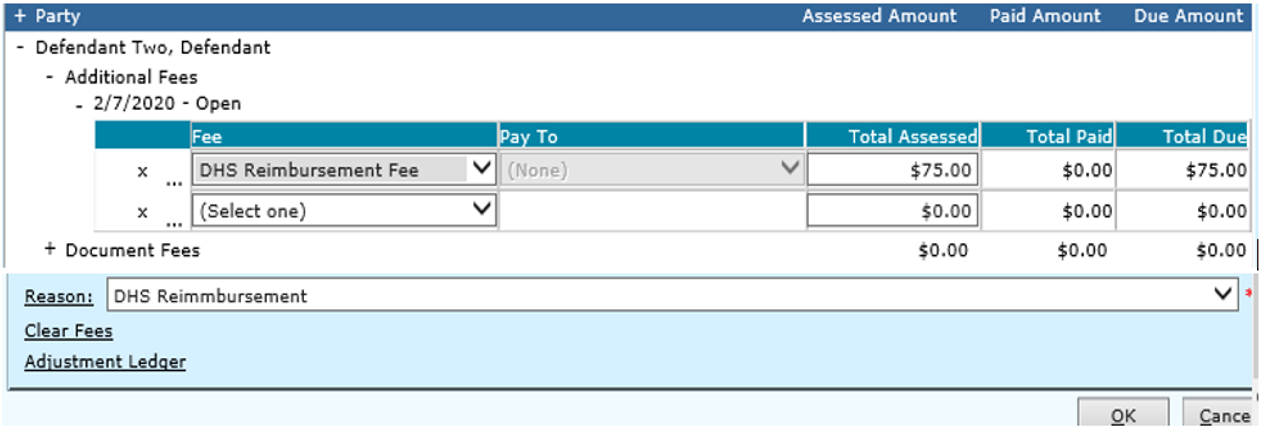
Click Add New Fee under the ‘filing fees’ section
Select the ‘DHS Reimbursement Fee’ from the drop down (see on next page)
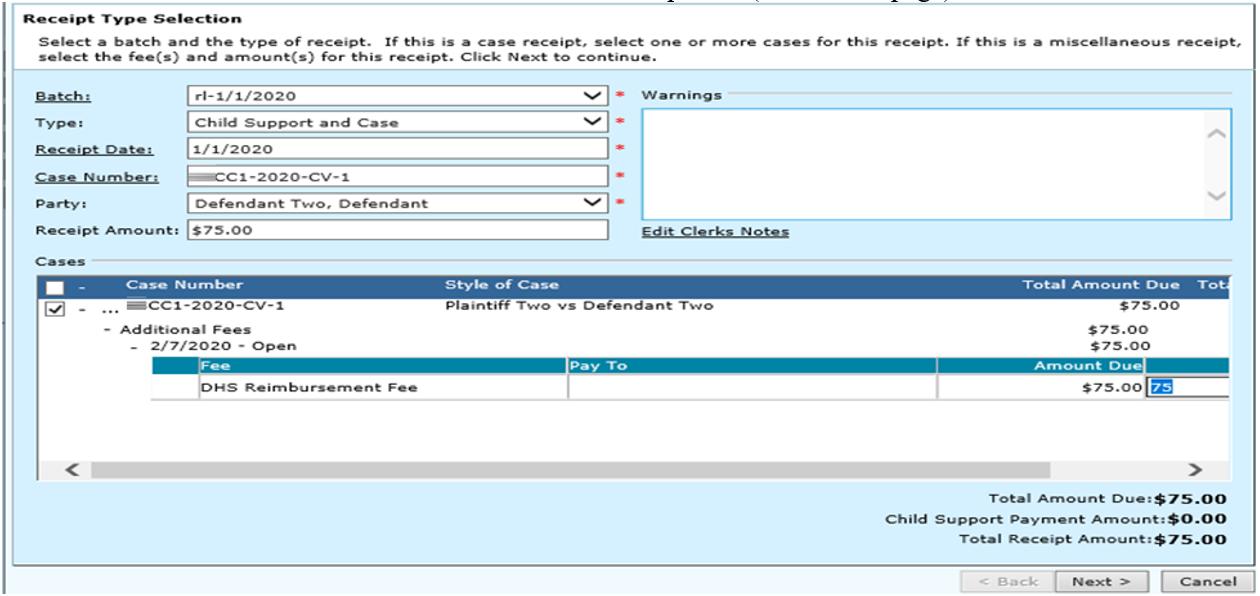
Once selected, enter the assessed amount in the assessed amount field for the DHS fee. This will be equal to the amount received from DHS. Select or enter a reason and click OK.
Once the fee has been added, you can proceed to step 3.
Step 3 Disposing a DHS Reimbursement Case
Dispose a child support case that has a DHS reimbursement linked to it.
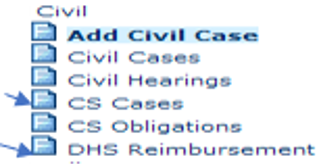
Search for the case you are looking for using the ‘Civil Cases’ or ‘CS Cases’ search from the civil folder.
Double click to select the case from the case list.
From the case general screen, select the task ‘dispose case’.
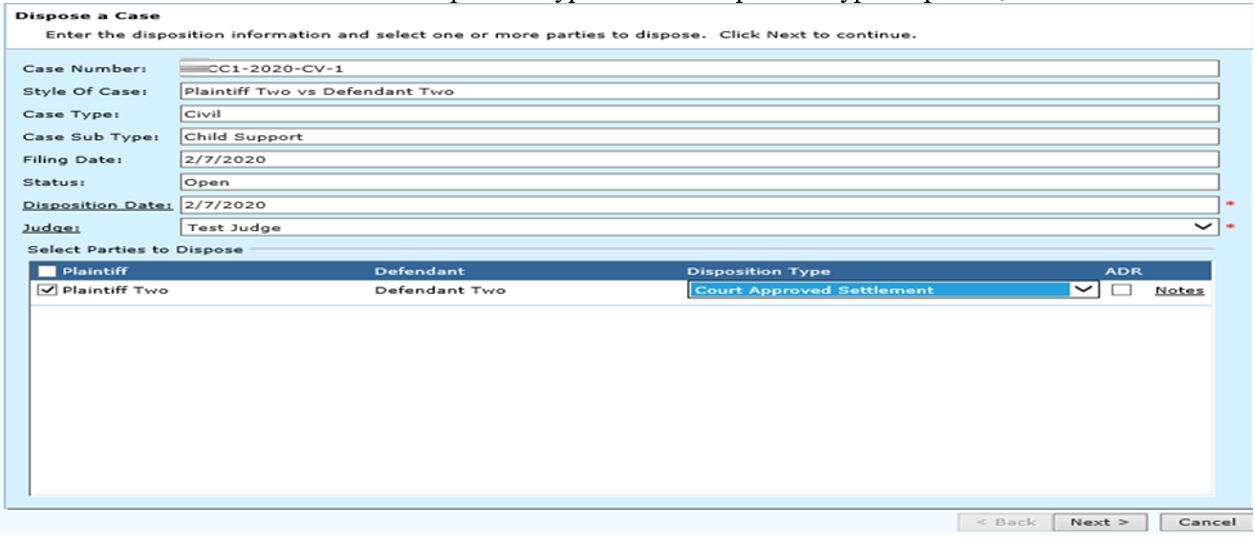
When the dispose screen appears, verify that the disposition date is correct
Select a judge from the drop down.
Mark the check box beside the parties that you wish to dispose.
Select a disposition type from the disposition type drop down, and then click Next.
The enter judgment screen will now appear.

Select a judge from the drop down (if not defaulted)
Make sure judgment date is correct
Select party from the ‘judgment for party’ drop down, who won the case.
From the ‘cost to apply’ drop down, select the ‘unpaid cost’ option. This will select the defendant as the ‘judgment against party’. It will then drop in the remaining court costs and the amount to reimburse DHS.
Do not select a party for the ‘select parties to refund cost’ drop down. The DHS reimbursement fee is already applied against the defendant.
Click Next to continue.
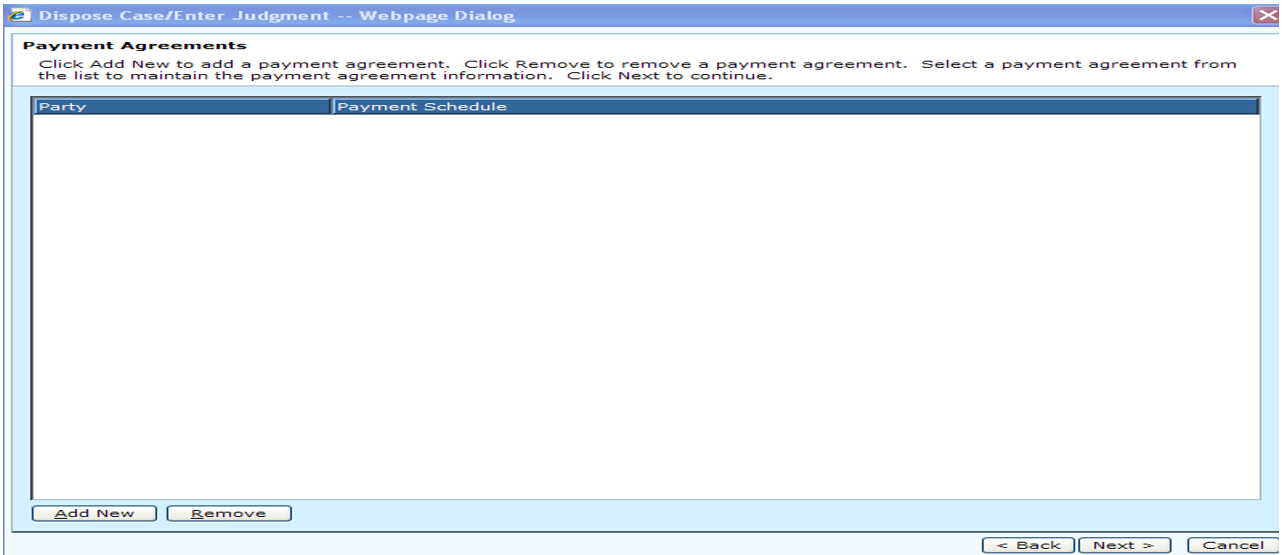
The payment agreement screen will appear, click Next.
The rule docket screen will appear. Review/modify, and then click Next.
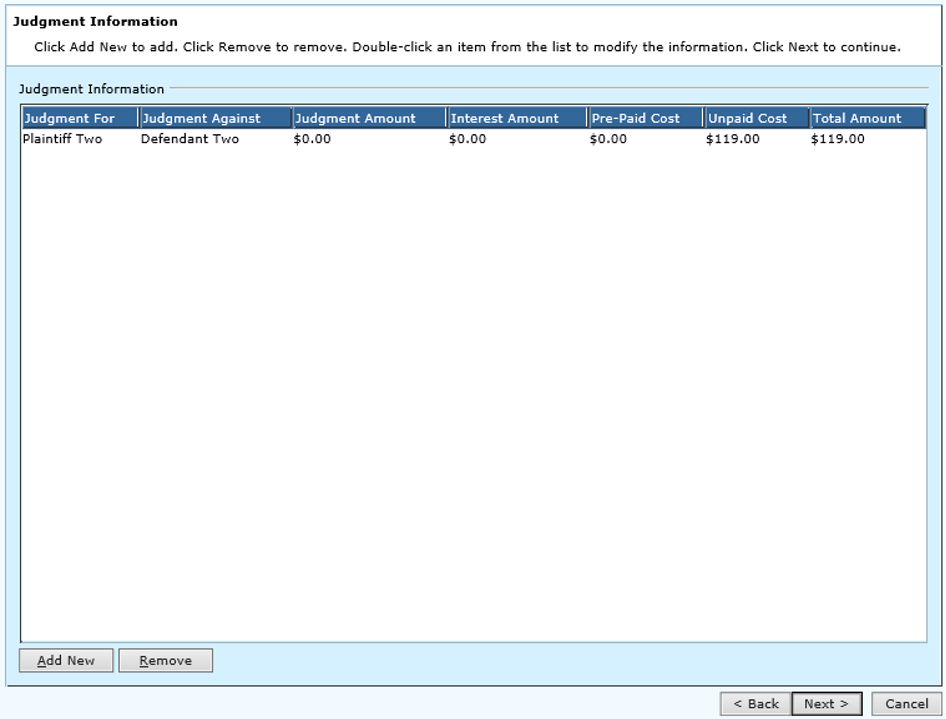
The Judgment information screen will appear. Verify information or add new
information if necessary.
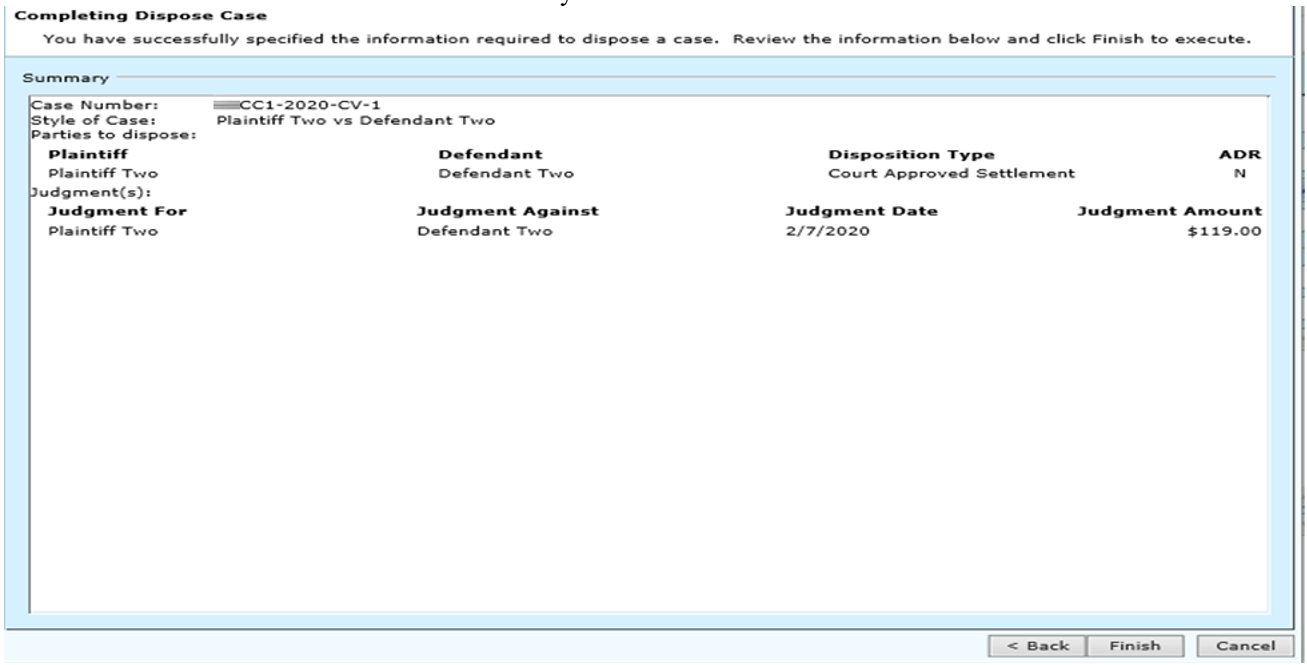
The completing dispose case screen will appear. Verify information and click Finish to save.
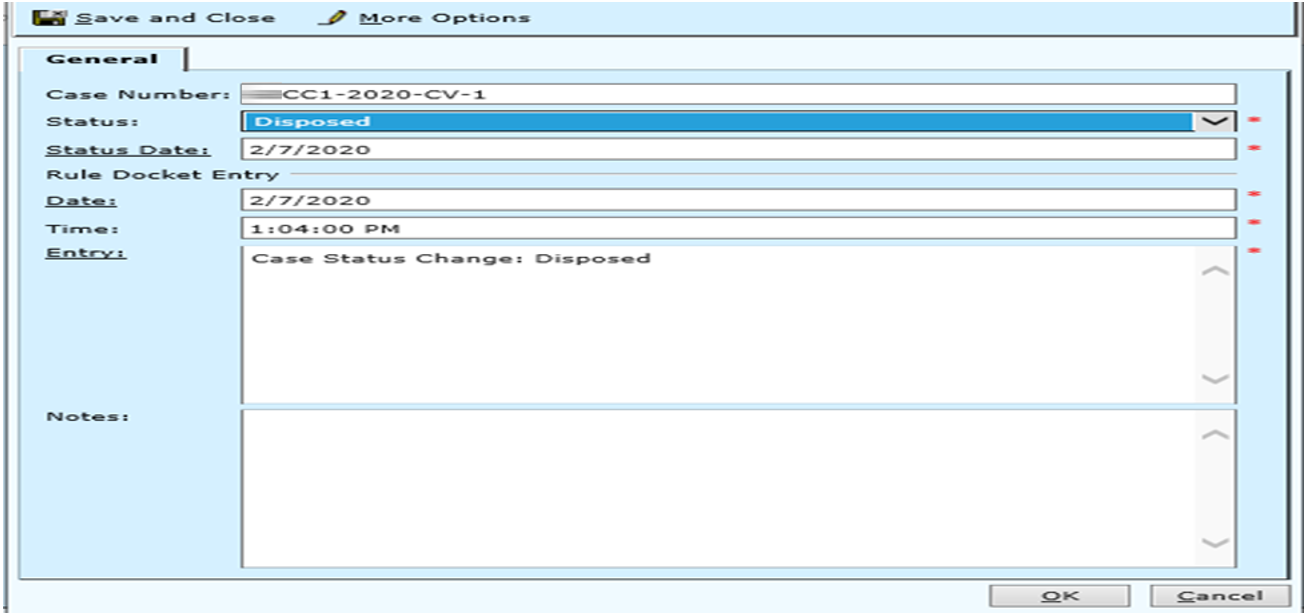
Verify the case status is correct and click OK.
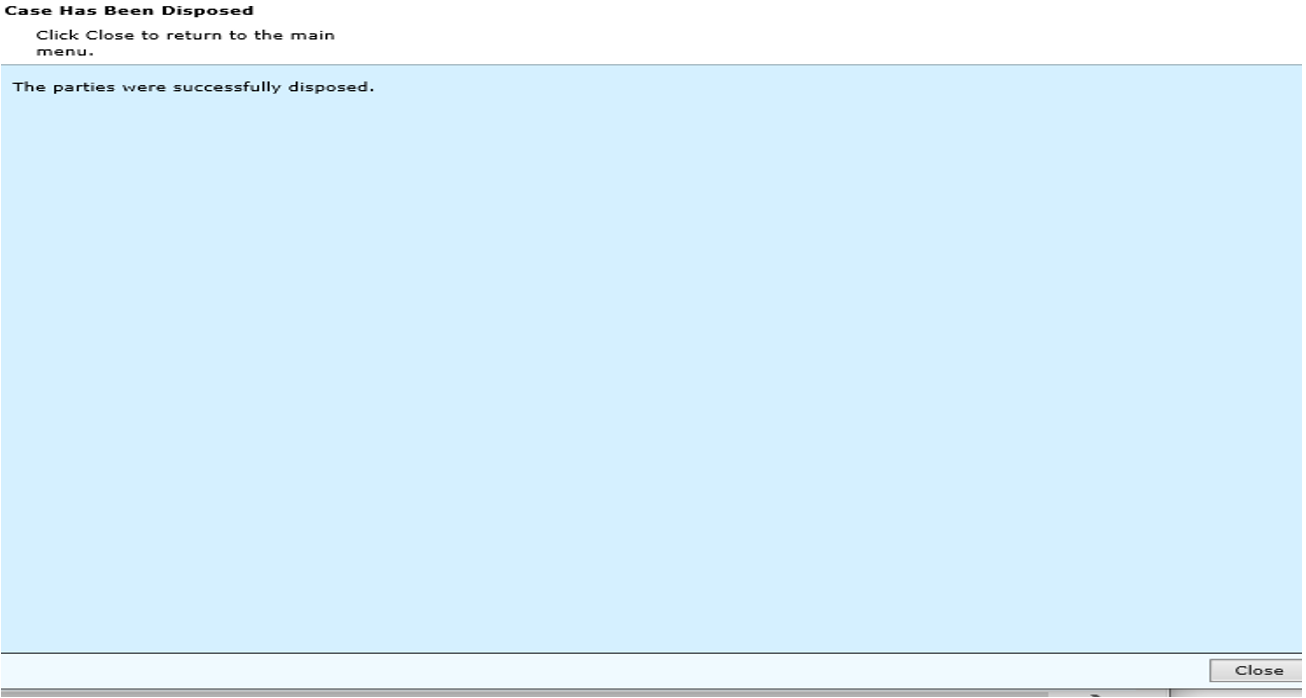
Click Close to return to the general screen.
Rev. 04/21/2021