TJIS - Select Items to Report
Summary
TJIS compiles information from across the state, and produces statistical reports based on the information gathered. This interface allows you to select both Civil and Criminal cases (depending upon the interface type setup), and a date range within which to report cases. You will have functionality to view/correct errors prior to sending the batch file. After reviewing the batch file, you will be able to send it to the AOC. Any corrections for TJIS reporting after the file is sent will still be done manually.
Interfaces
TJIS
Select Items to Report
Step 1: Select Process.
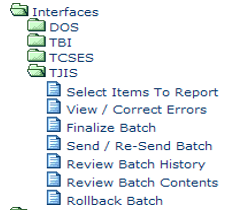
From the TnCIS main menu, open the TJIS folder.
Choose Select Items To Report.
Step 2: Select Items To Report.
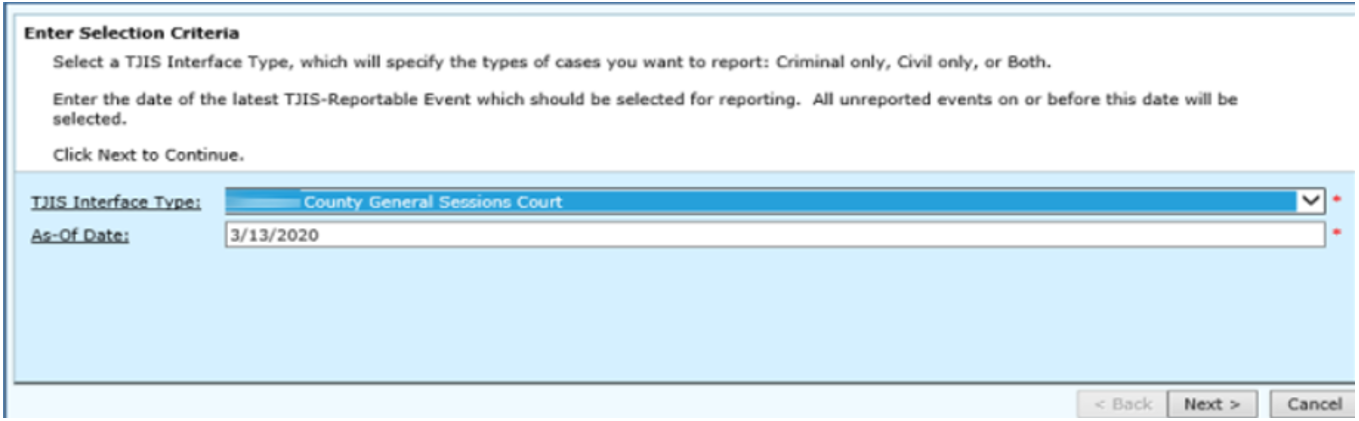
Select a TJIS Interface Type to specify the types of cases to report: Criminal only, Civil only, or both.
Click As-Of Date to view a calendar.
Select an As-Of Date. Note: The As-Of Date chosen indicates the date of the latest TJIS Reportable Event to be selected.
Click Next.
Step 3: Verify cases selected for reporting.
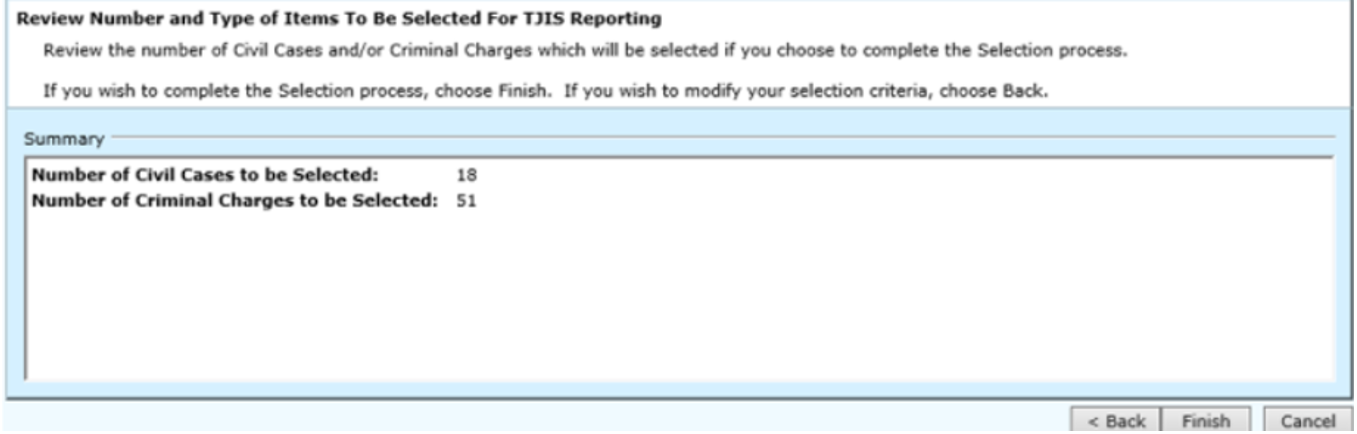
Review the number of Civil Cases and/or Criminal Charges to be selected.
Click Finish to complete the selection process.
Step 4: TJIS Items to Report Have Been Selected
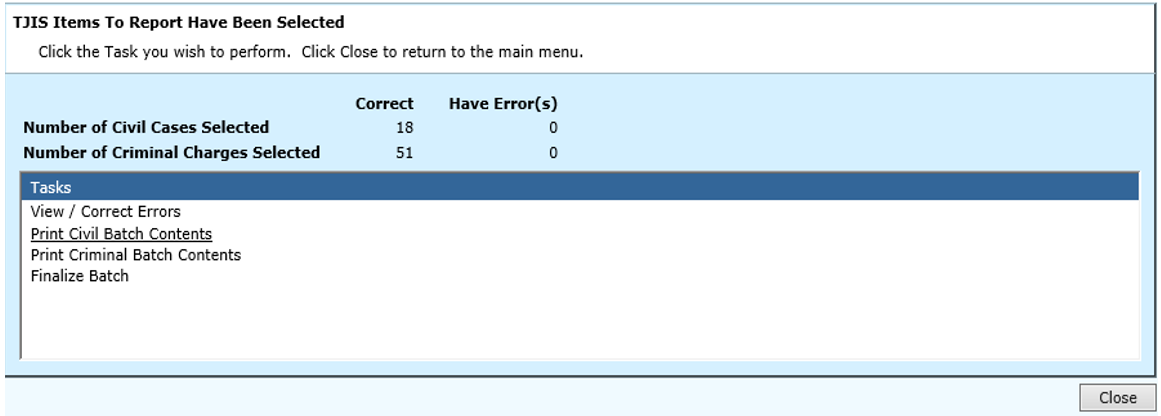
The system indicated the TJIS items have been selected and displays a list of tasks you can perform.
- View/Correct Errors will take you to a new screen to correct errors. See View/Correct errors section.
- Print Civil/Criminal Batch Contents will be a listing of cases which have errors that can be printed.
- Finalize Batch is to be used when batch is ready to send to the AOC if file is error free.
Rev. 07/08/2021