Combine Names
Summary
This option allows you to combine names. This can be used to combine a correct name with an incorrect or alias name. Or you can create an AKA/DBA from the combined names.
Utilities
Combine Names
Step 1: Select process
After opening the Utilities folder, select Combine Names.

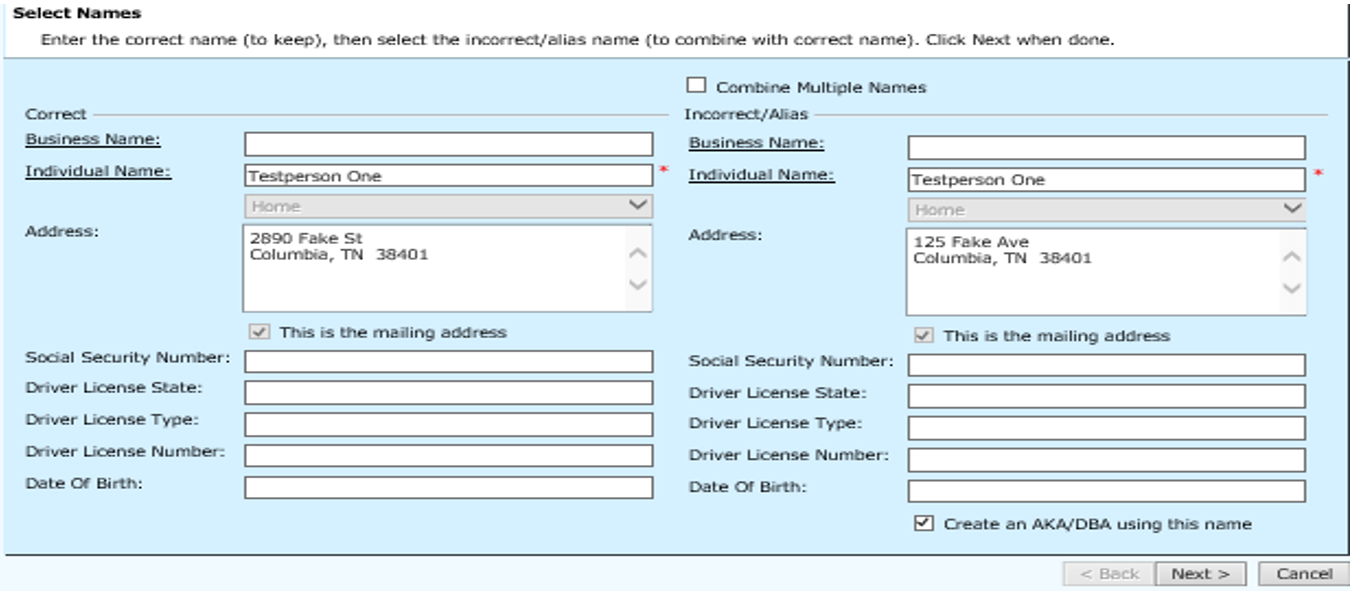
Step 2: Select Names
Enter the business or individual name to be combined. You can use the Business Name or Individual Name hyperlink to select from names currently on file. After selecting the names, the remaining information will be displayed. If you want to create an AKA or DBA from the combined name, check the box for Create an AKA/DBA using this name. Note: Be sure that the names you are combining are the same person. If you do not create an alias, the incorrect name will be completely removed from the system. When the information is complete; click the Next > button to proceed. To cancel the process and return to the main menu, click the Cancel button.
**** To Combine Multiple Names, Skip to Step 5 otherwise, continue combining individual name.
When the information is complete; click the Next > button to proceed. To cancel the process and return to the main menu, click the Cancel button.
Step 3: Completing Combine Names
View the information on this screen. If everything is correct, click the Finish button to proceed. Click the <Back button to return to the previous screens if changes need to be made. To cancel the process and return to the main menu, click the Cancel button.
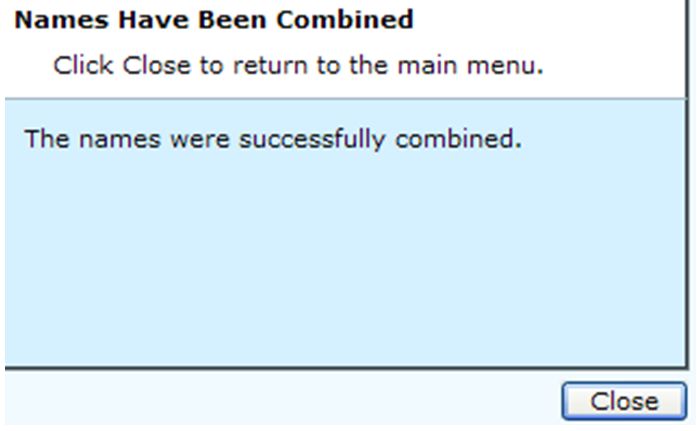
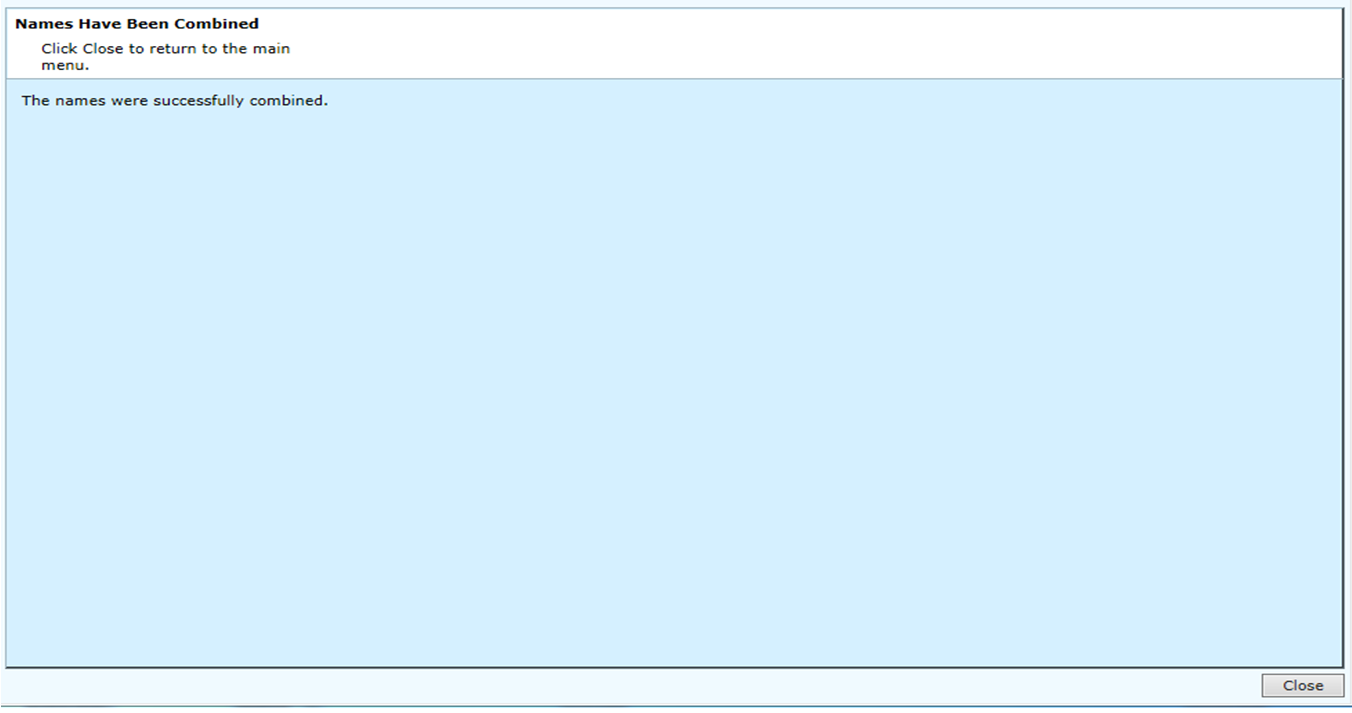
Step 4: Names Have Been Combined
When the information has been updated, this screen will be displayed. After viewing the information, click the Close button to return to the main menu.
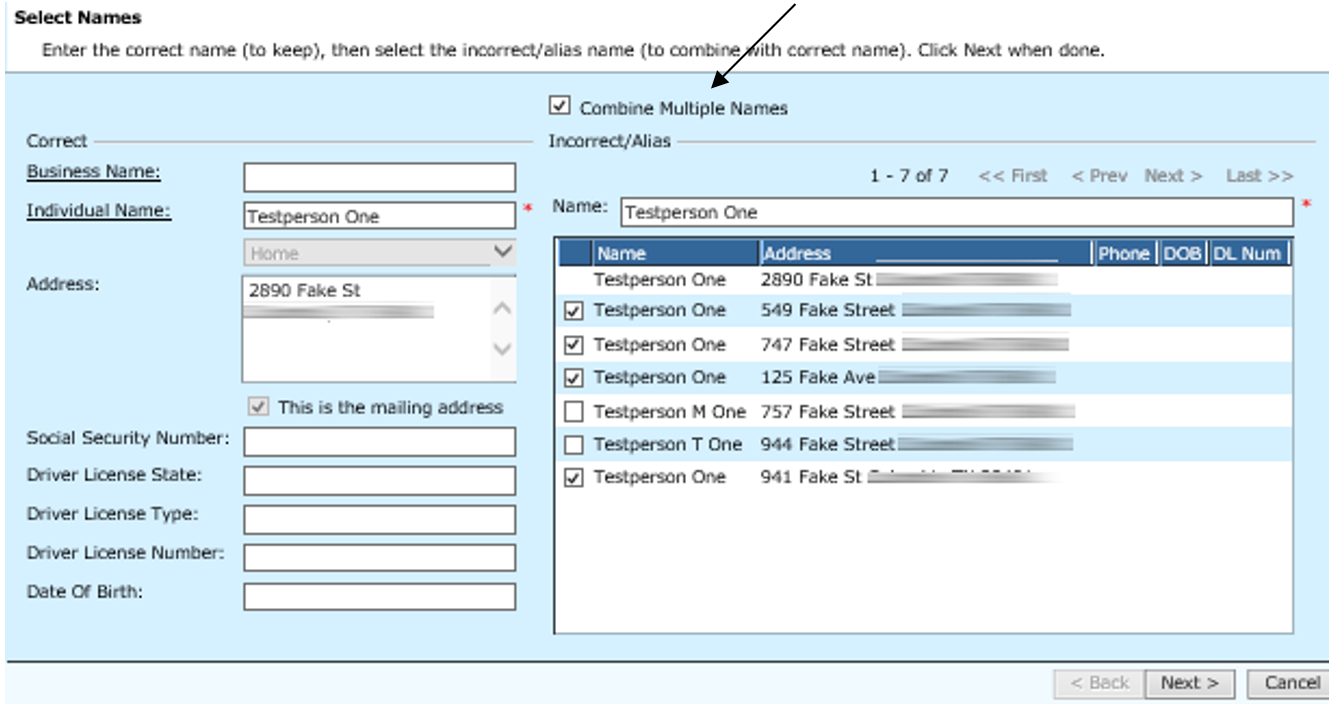
Step 5: Combine Multiple Names
This option allows you to Combine Multiple Names. This can be used to combine a correct name with incorrect/alias names. Enter or select the correct individual or business name to be combined. Check the “Combine Multiple Names” check box. Enter the Incorrect / Alias Information in the “Name” field. Tab off the name; a list of possible names to be combined will display. Be sure that the names you are combining are the same person. An alias will not be created since you are combining multiple names. Mark the check boxes beside each incorrect name that needs to be combined. When the information is complete; click the Next > button to proceed. To cancel the process and return to the main menu, click the Cancel button.
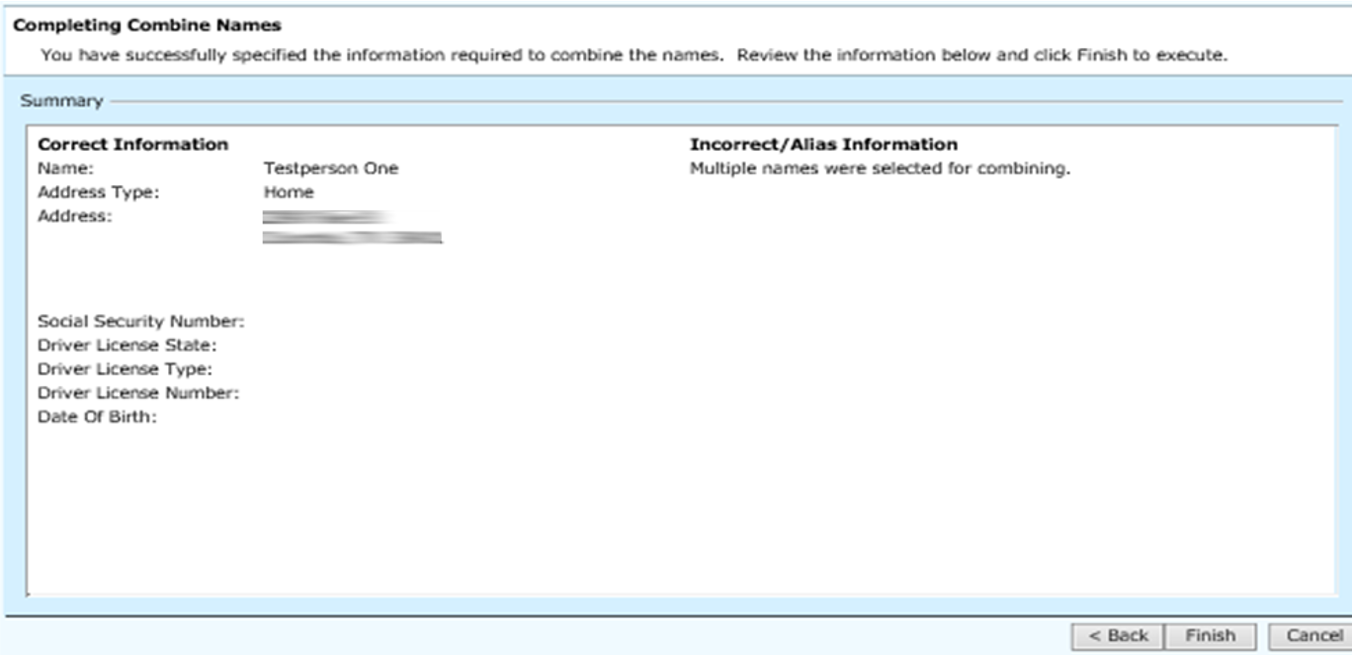
Step 6: Completing Combine Names
The Summary page will only display the Correct Name information; the incorrect name will not be displayed because multiple parties are being combined. Click the <Back button to return to the previous screens if changes need to be made. To cancel this process and return to the main menu, click the Cancel button. Click the Finish button to proceed.
Step 7: Multiple Names Have Been Combined
When the information has been updated, names have been combined. To return to the main menu, click the Close button to return to the main menu.
Rev. 04/01/2021